
How to embed AITENDLY on your event website
The widget adapts to your brand and your use cases.It can be embedded in 5 minutes with no integration required.
Inline embed — widget inserted in a specific place on the page
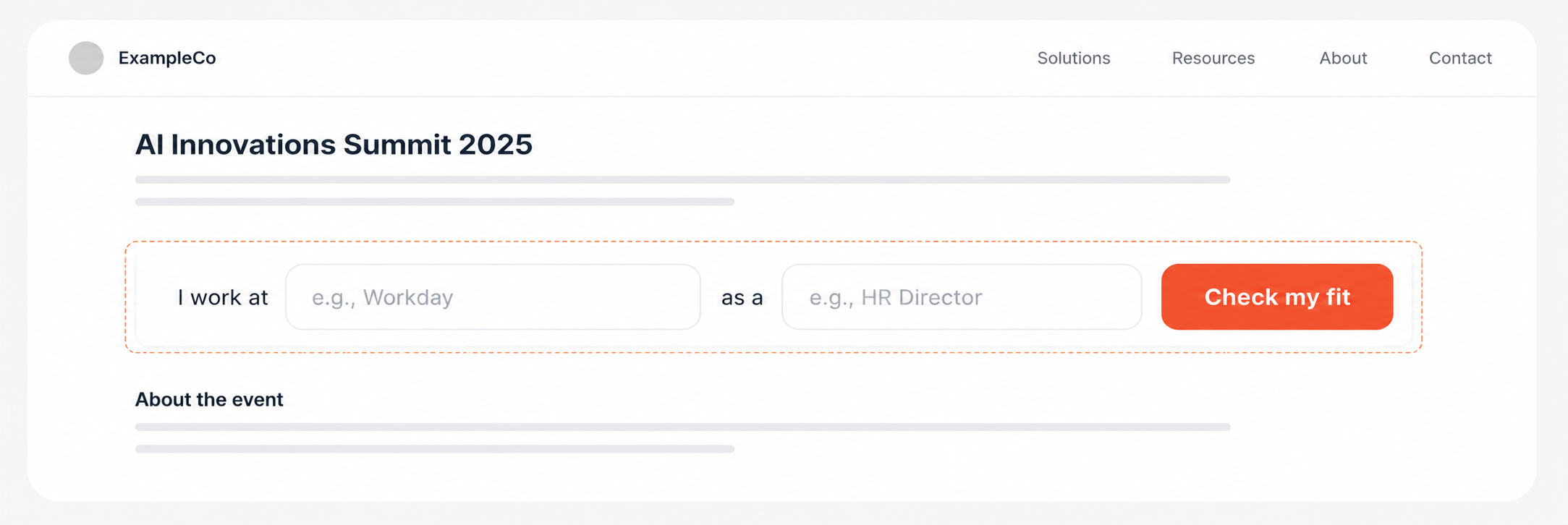
Use inline mode when you want the widget to appear in one exact place on the page — for example under the hero section, near the agenda, or above registration.
To embed it:
- Add an empty div where you want the widget to appear.
- Paste the AITENDLY script right below that div.
- Replace "your-event-slug" with the event slug provided by your AITENDLY manager.
- Keep data-mode="inline".
- data-target tells the script where to render the widget. In this example, data-target="#aitendly-widget" points to the div with id="aitendly-widget". If you change the div id, update data-target to match it exactly.
<div id="aitendly-widget"></div>

<script
  src="https://widget.aitendly.com/embed.js"
  data-event-slug="your-event-slug"
  data-mode="inline"
  data-target="#aitendly-widget"
></script>Sticky-bottom embed — widget fixed to the bottom of the page
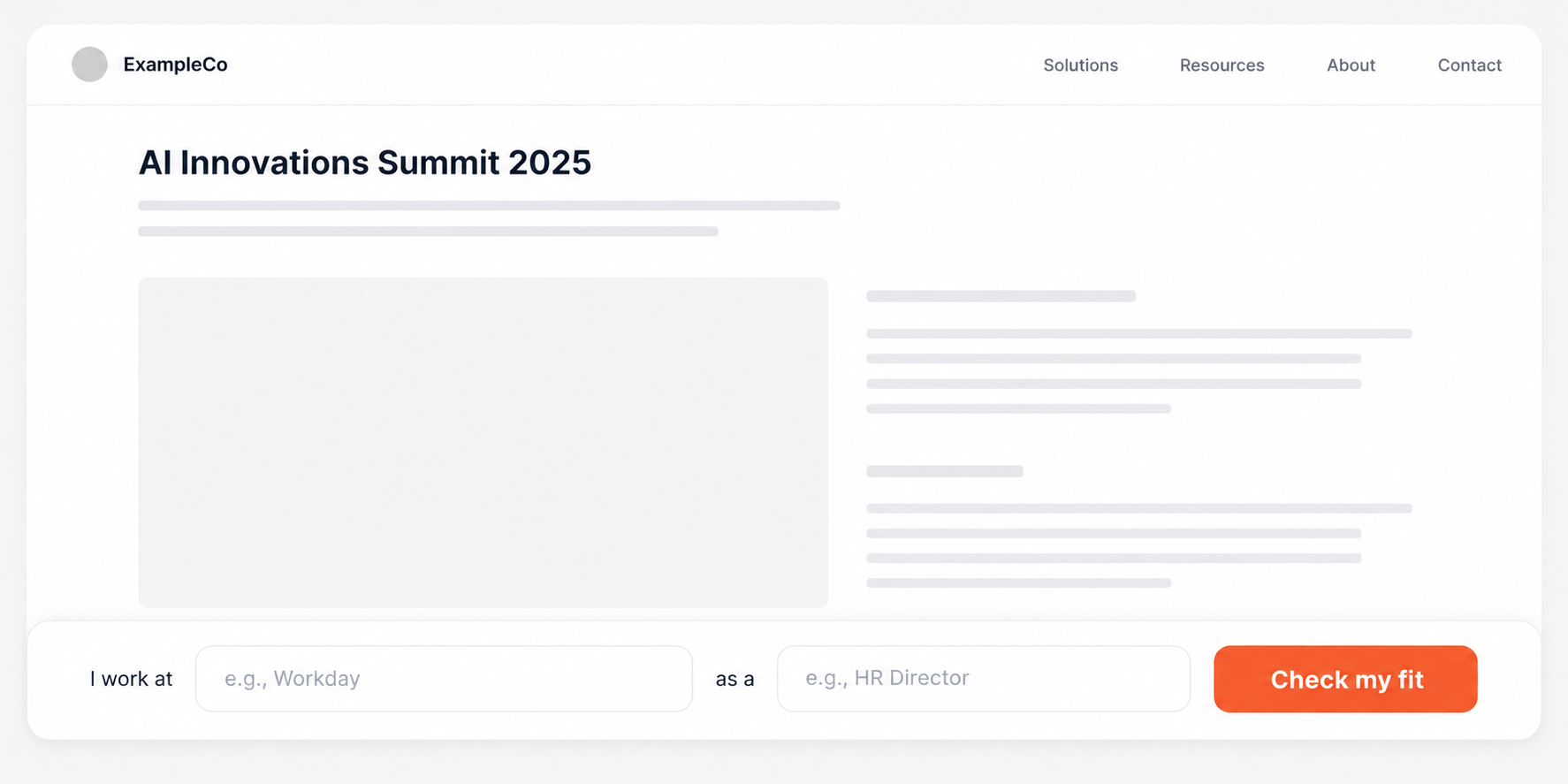
Use sticky-bottom mode when you want the widget to stay available while visitors browse the page. It works well on long pages, speaker pages, exhibitor pages, sponsor pages, and agenda pages.
To embed it:
- Paste the script on the page where you want the widget to load.
- Replace "your-event-slug" with the event slug provided by your AITENDLY manager.
- Keep data-mode="sticky-bottom".
- Choose data-devices based on where you want the widget to appear:
- data-devices="desktop" shows it only on desktop.
- data-devices="mobile" shows it only on mobile.
- data-devices="all" shows it on all devices.
<script
  src="https://widget.aitendly.com/embed.js"
  data-event-slug="your-event-slug"
  data-mode="sticky-bottom"
  data-devices="desktop"
></script>